Jump To: How To Get It | Using The App | Tips
How To Get It
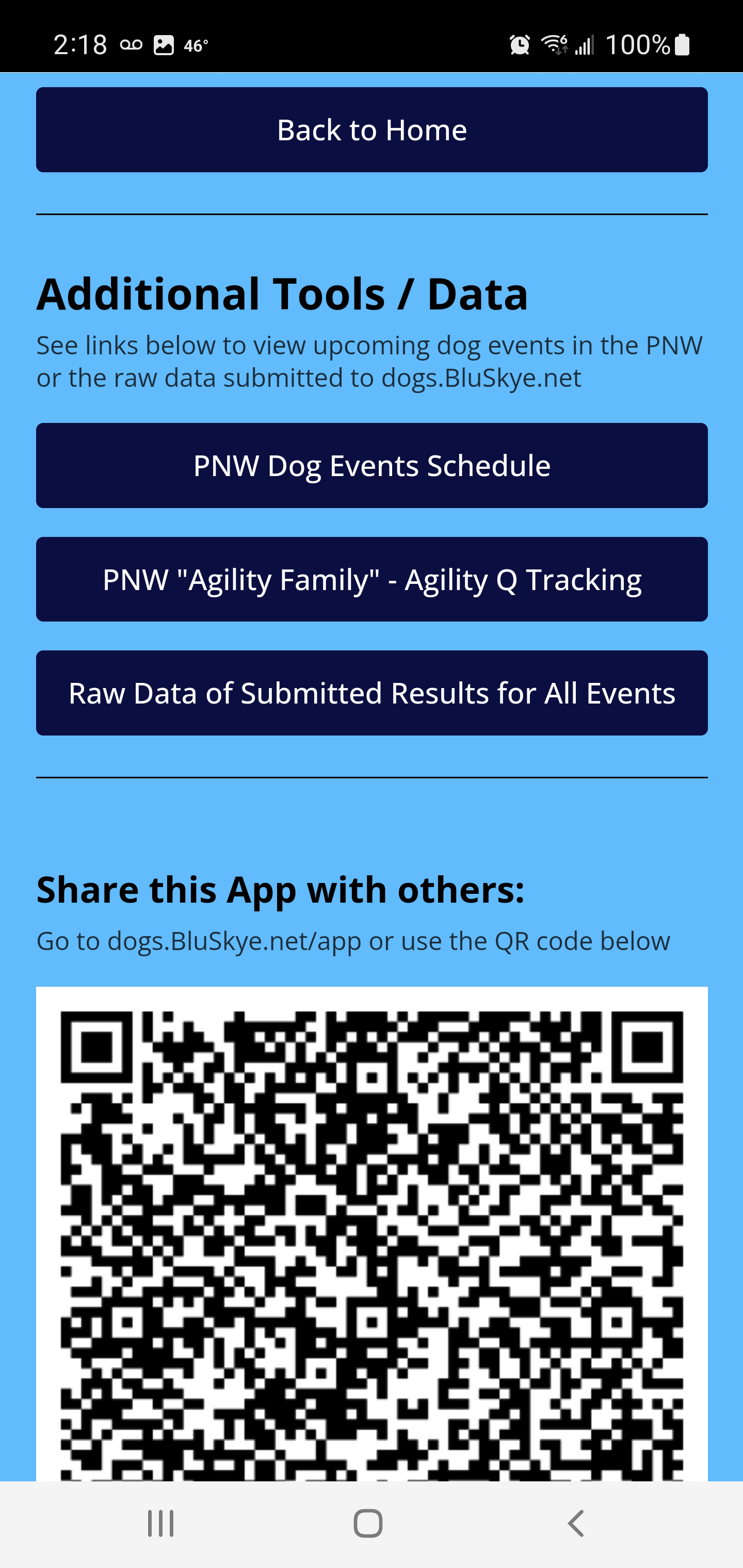
- Go to: dogs.BluSkye.net/app or scan the QR code below.

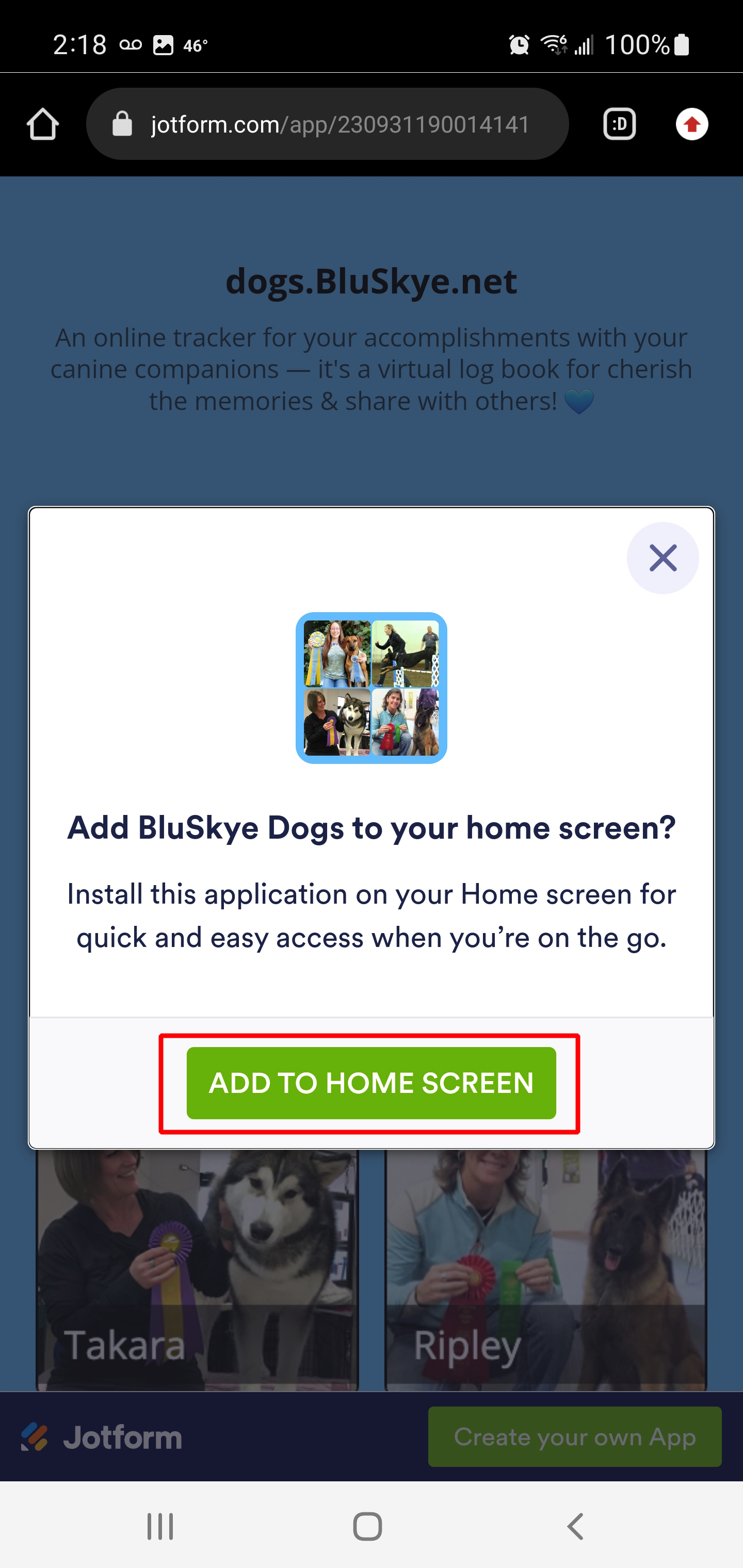
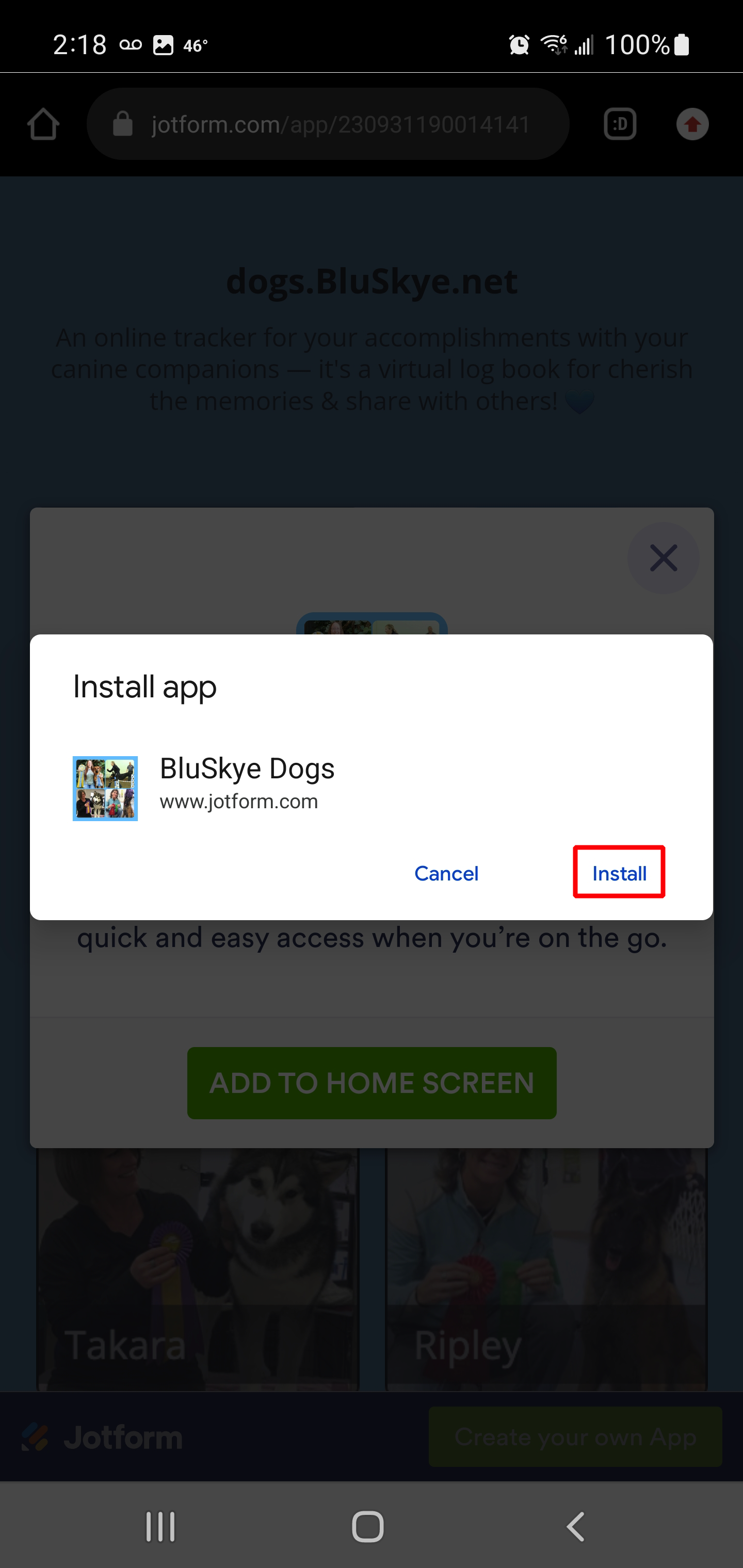
- Once you are there, it will have a pop-up that asks you to download the app — click the "ADD TO HOME SCREEN" button & then click the "Install" button.
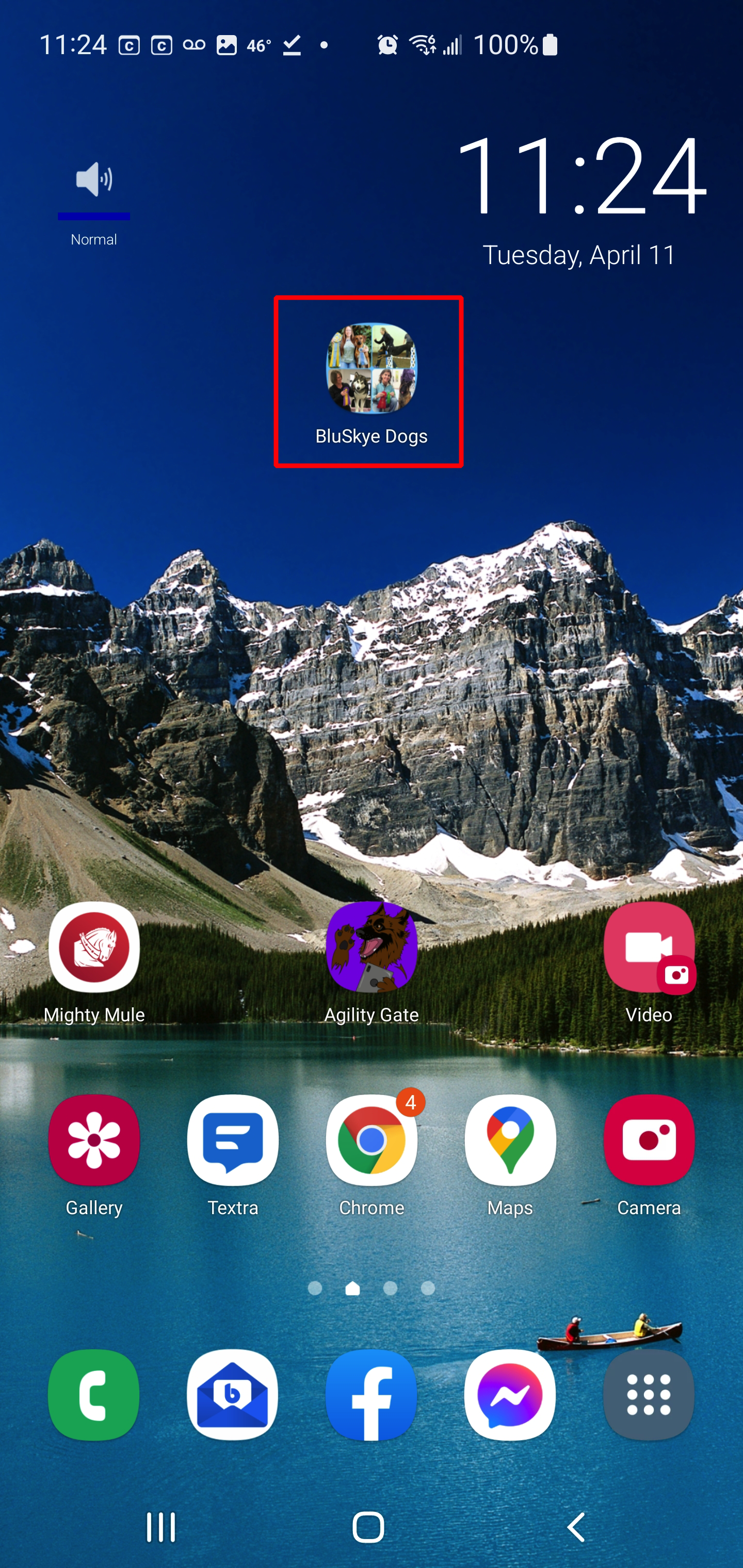
It may not automatically add it to your home screen, but you can choose to add it or leave it in your Apps folder.
|
Using The App
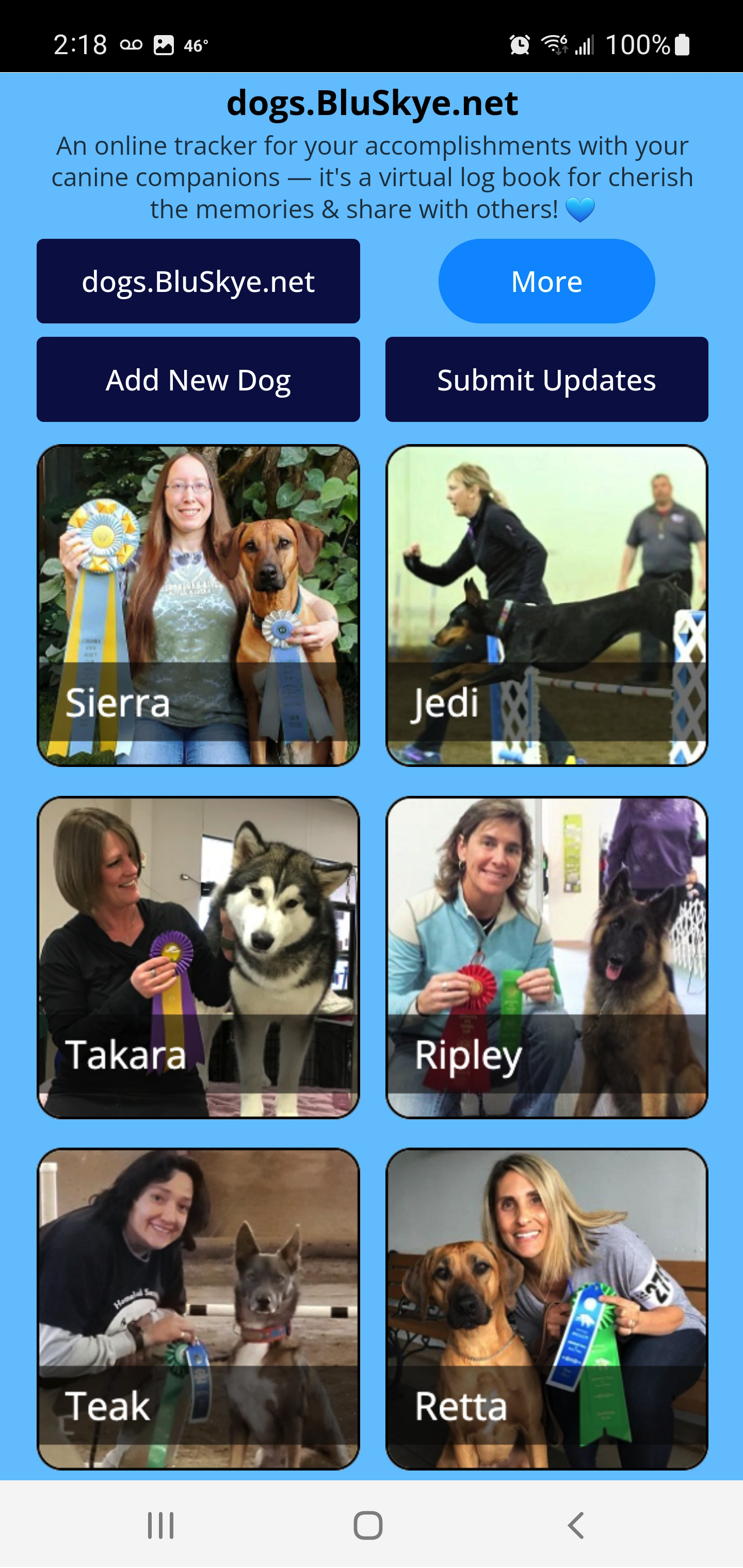
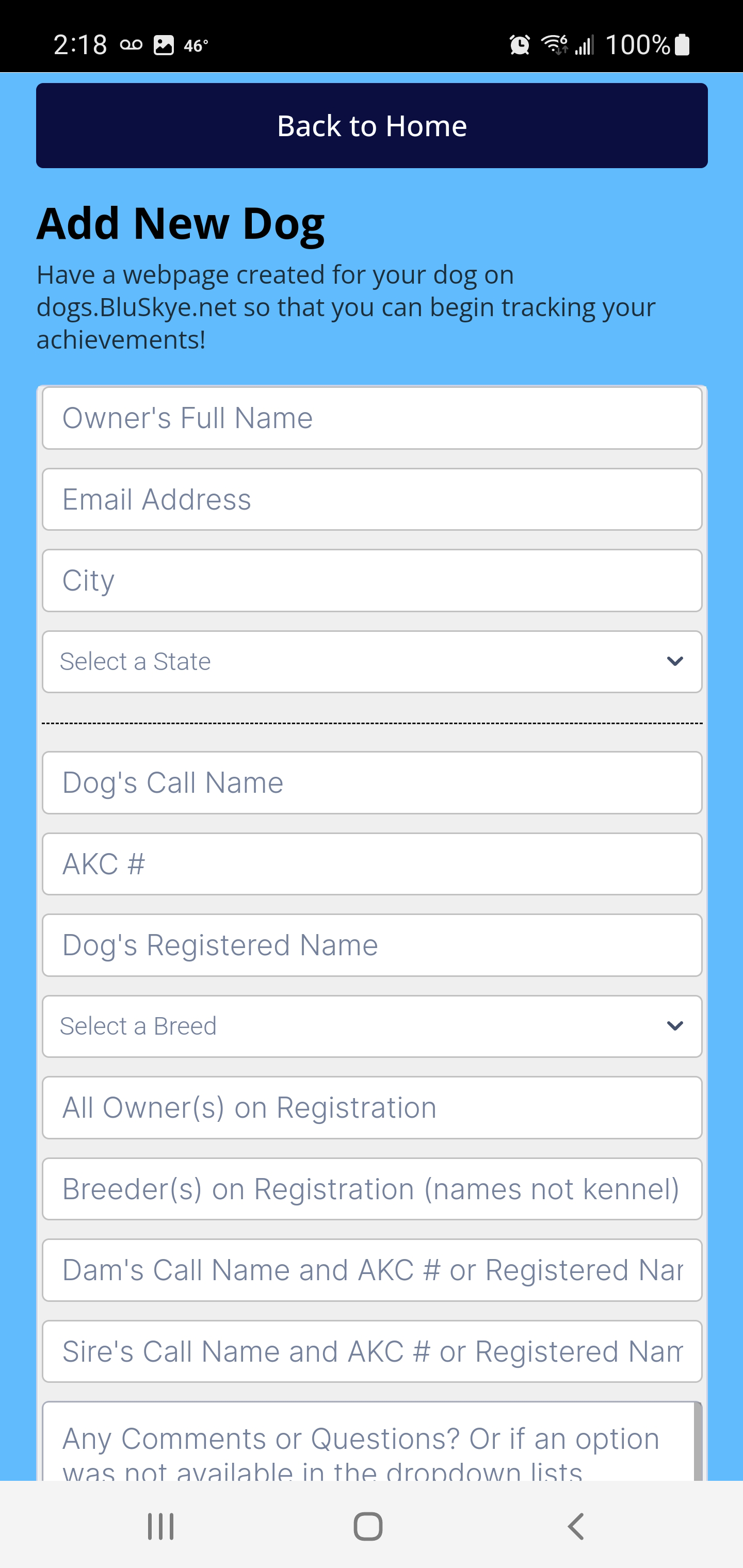
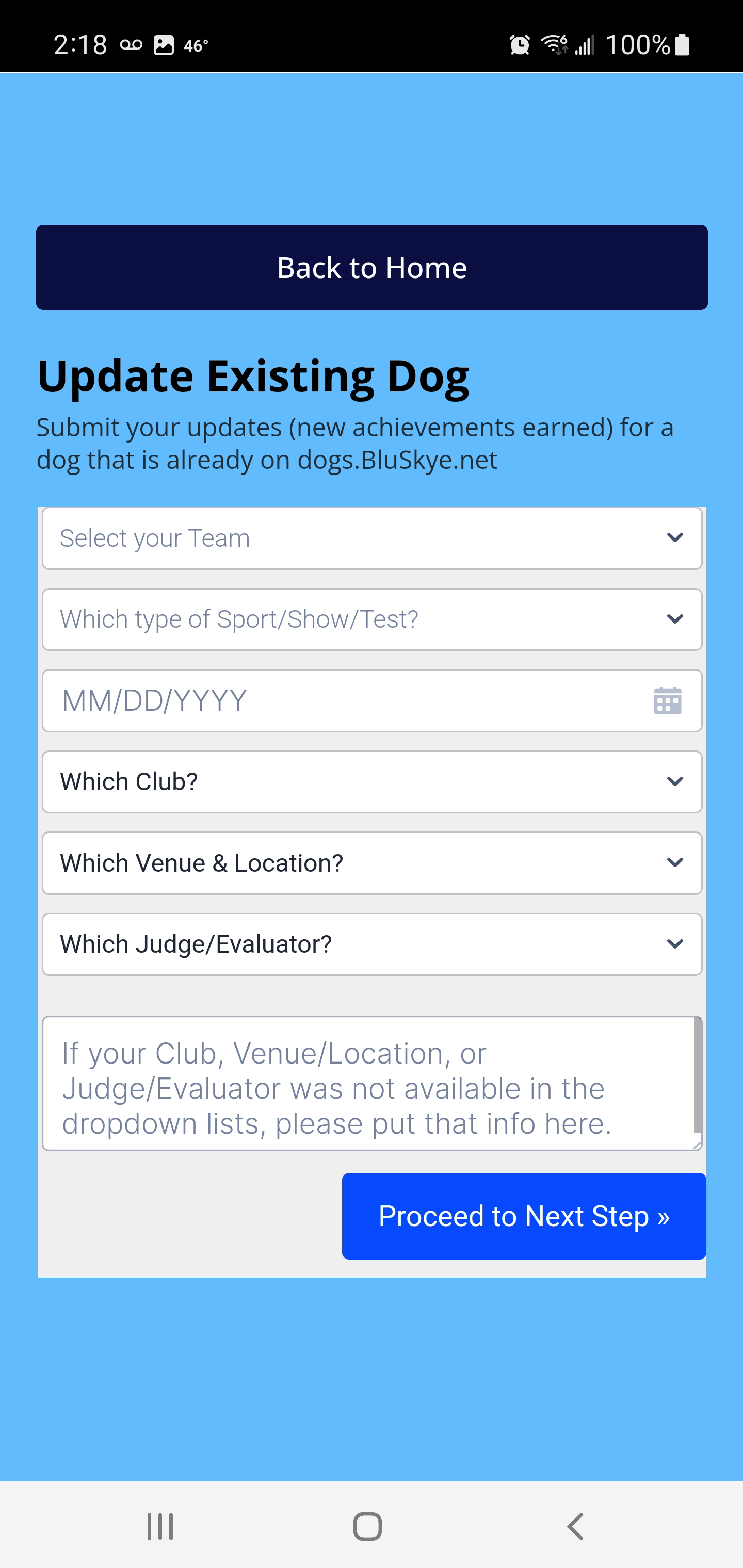
- The app allows the user to easily submit updates on the go, using a mobile device. Click the buttons to "Add New Dog" or "Submit Updates" for a dog that is already on the website — use the forms to fill in all of the data that you can.
Please note: not all of the fields are required, in case you do not have the info, but please do not leave fields blank if you know the info — because I have to take time to manually look up any missing info, so if you have the info, that will save me from having to look for it. 💙 (If you submit the updates when the info is fresh in your mind, it will be easier to remember all of the details — which is part of the point of this app, to make it quick & easy.)
If an option you need (eg. a judge) is missing from any dropdown menu, please use the textbox provided to fill in that info for your submission & it will be added to the dropdown for the future.
If you are new to dogs.BluSkye.net, please navigate to the Services page (from the Menu at the top-right) for more information.
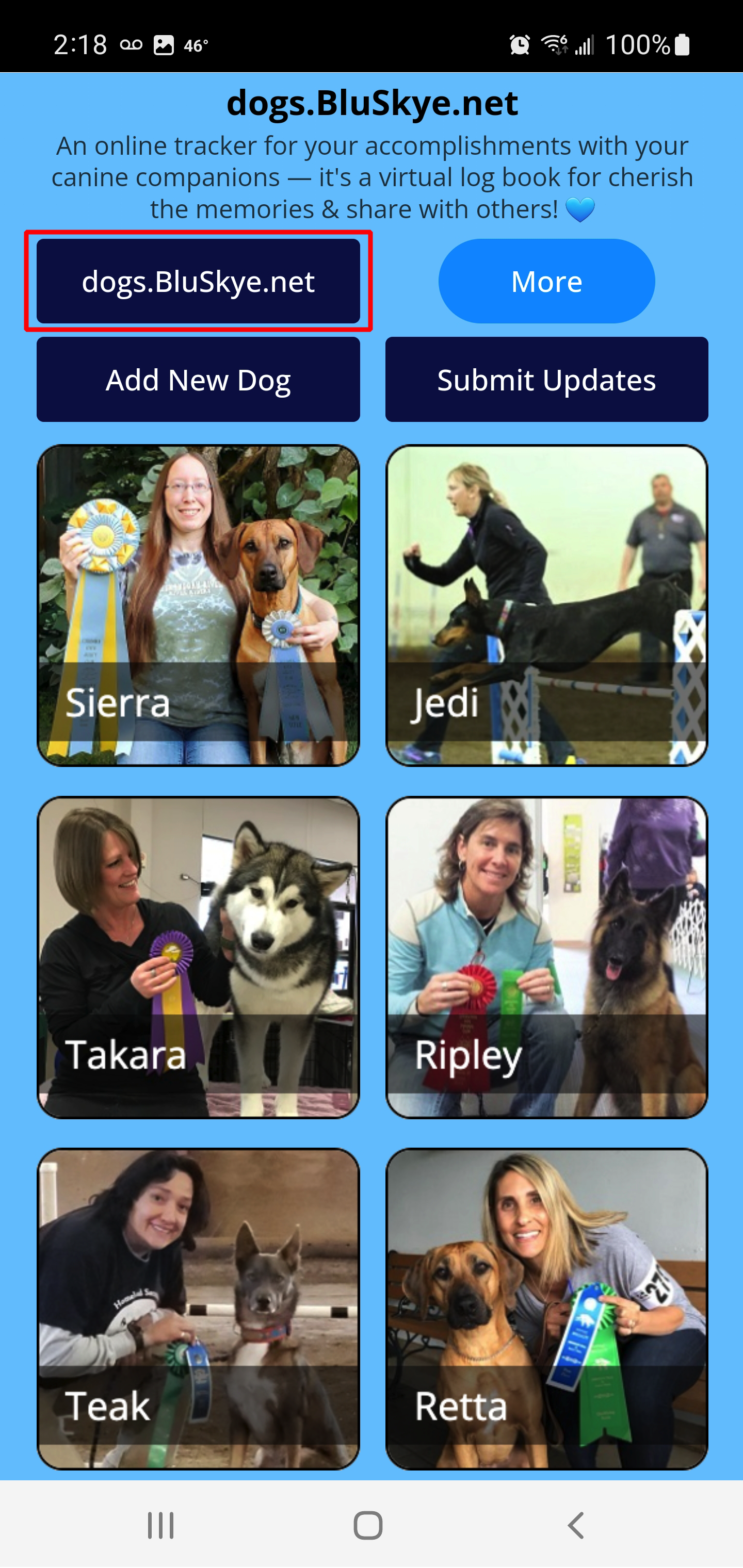
- Or click the "More" button for additional tools & information.
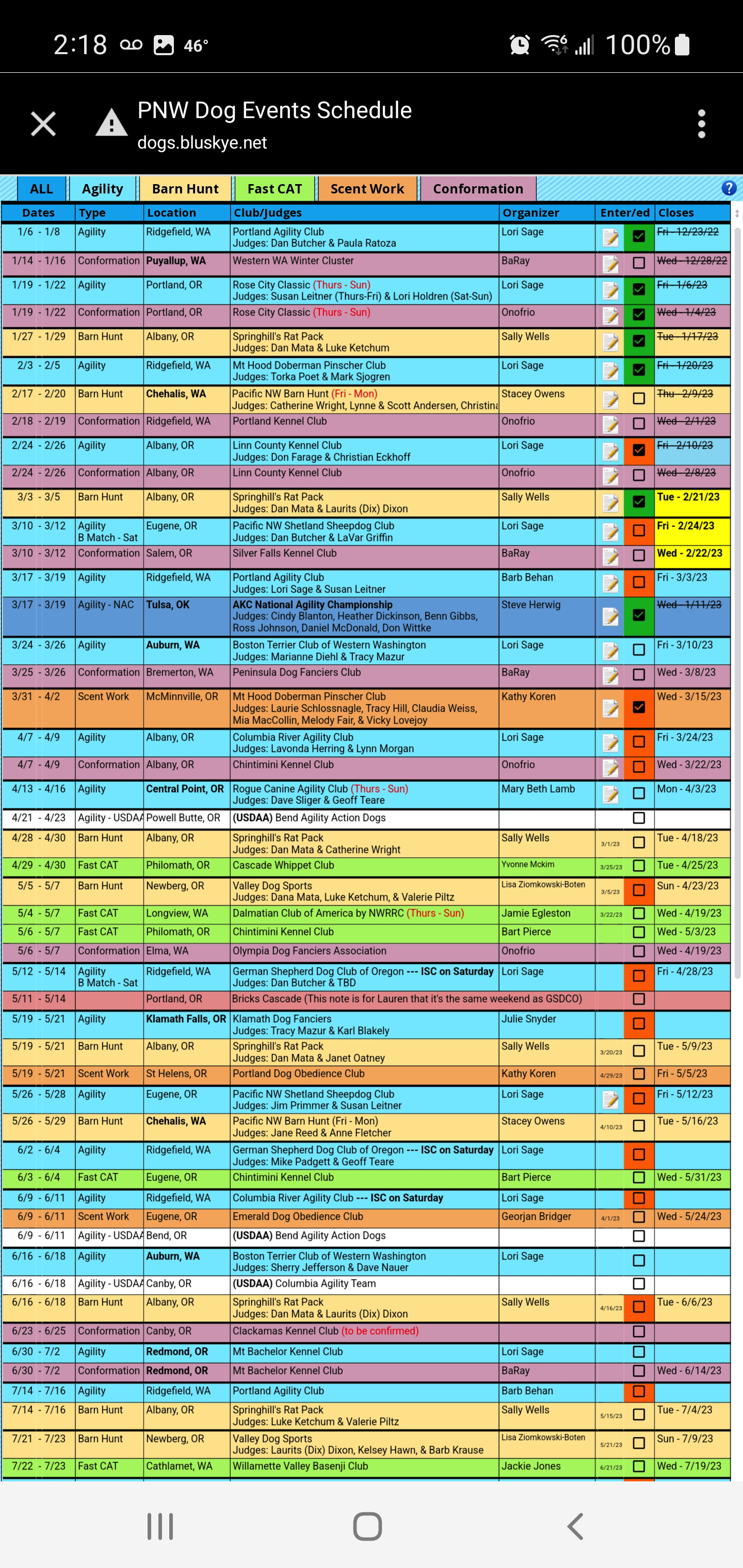
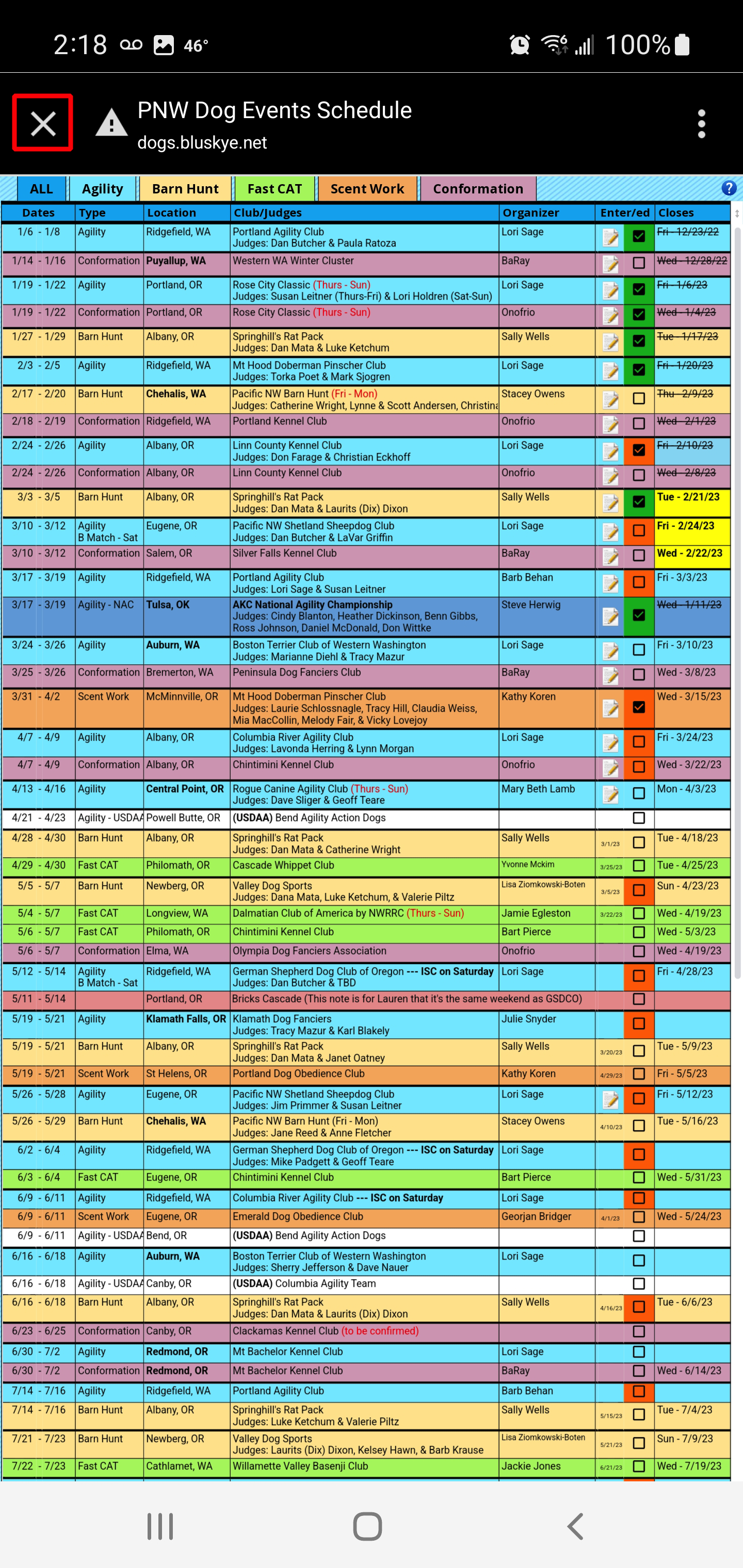
There is a PNW Dog Events Schedule to help you keep track of what events are coming up, with a tab for each type of event. (Note: I try to keep this as up-to-date as possible, but it is ultimately your responsiblity to not miss events you are interested in.)
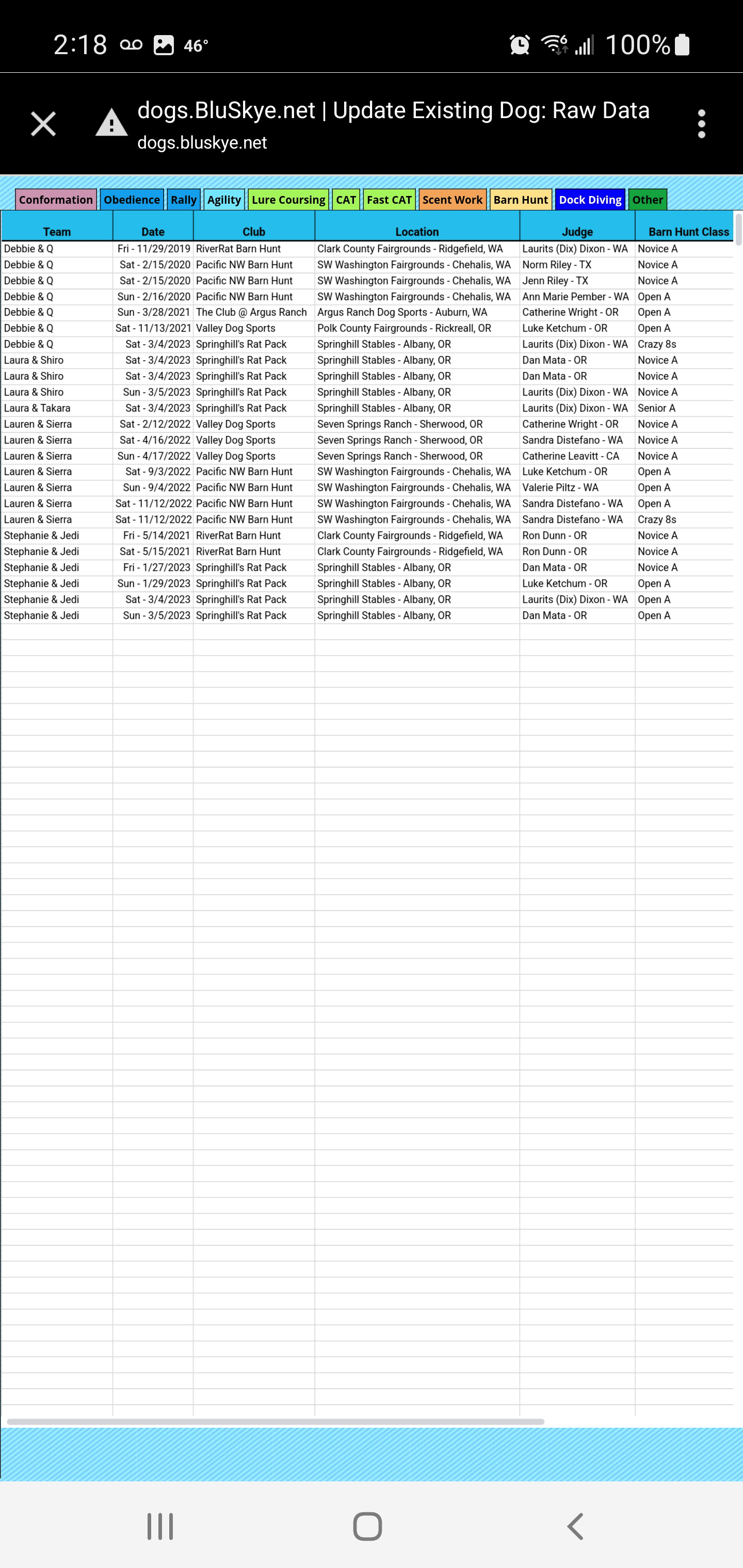
There is also a Raw Data spreadsheet, so that you can view your submissions in real-time, as it takes me time to manually convert the data into the webpage format & add it to your dog's individual webpage.
|
Tips
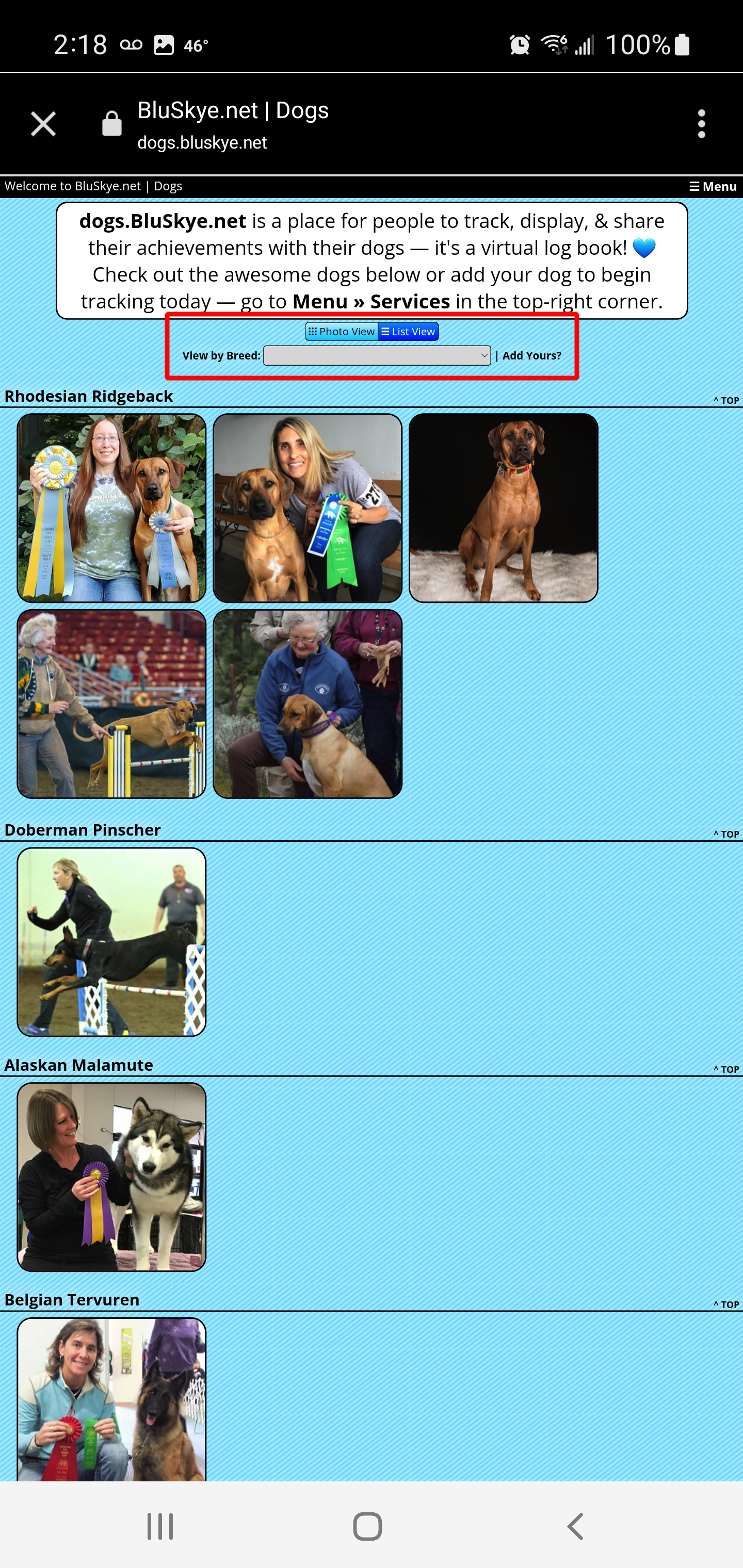
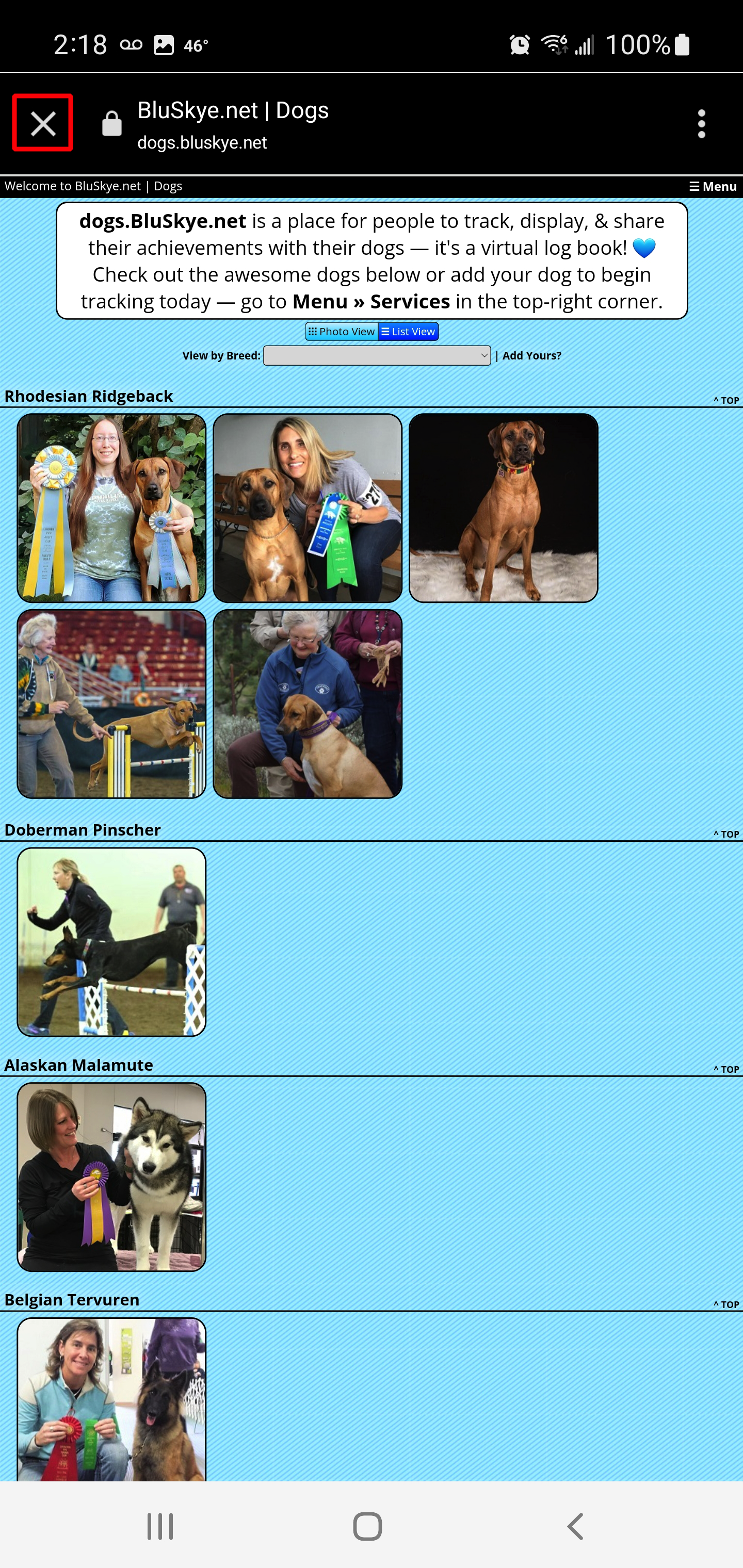
- The app has links to the individual dog pages on it, but as more dogs are added, it may become harder to find your dog — so if you click on the button for dogs.BluSkye.net...
you can use the dropdown menu at the top of the page to View by Breed, which should make it quicker to find your dog.
You can also click the button for List View, instead of thumbnail Photo View — you can then also click on the column headers to sort by each column separately.
Each dog does have their own unique web address as well — the format is: dogs.BluSkye.net/Dogname.
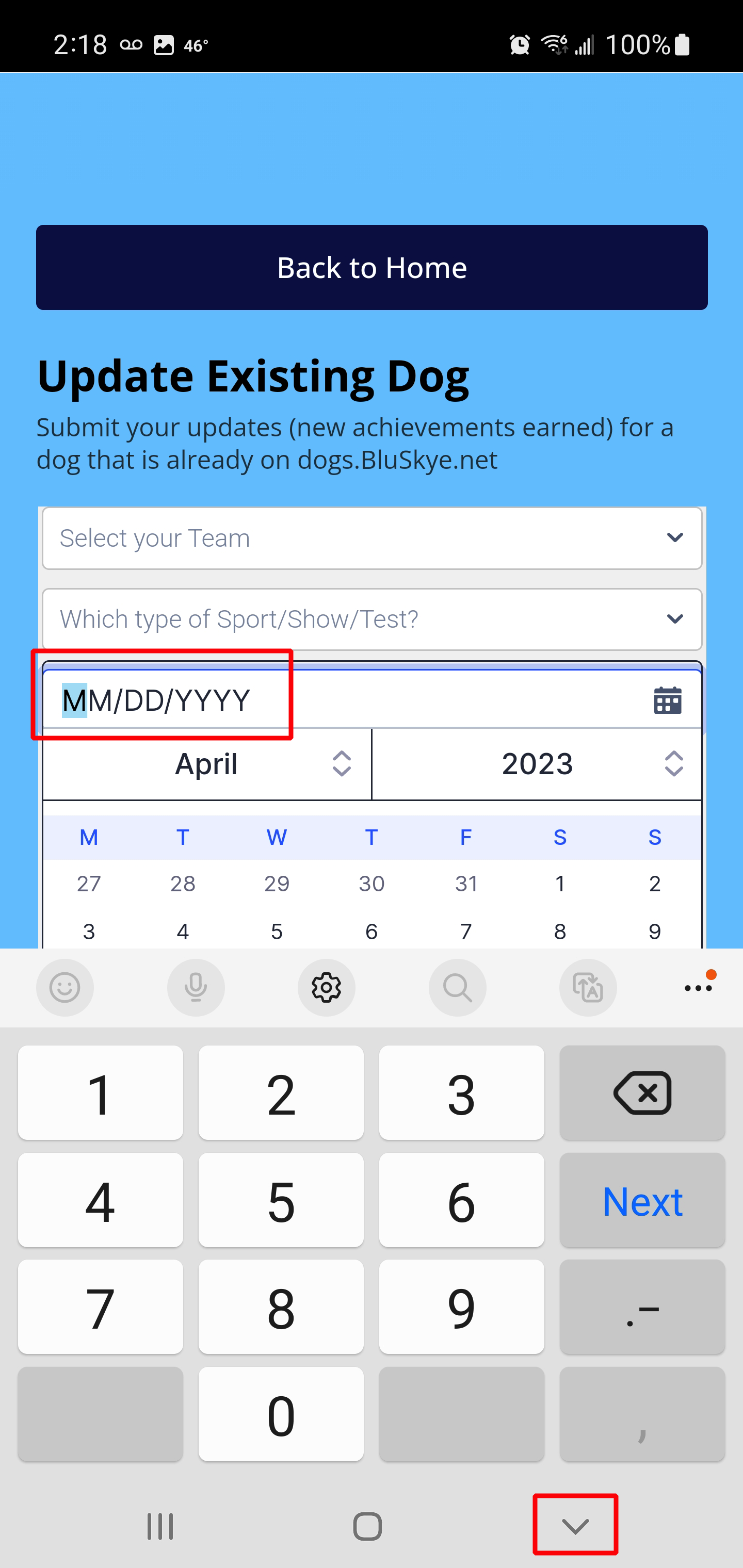
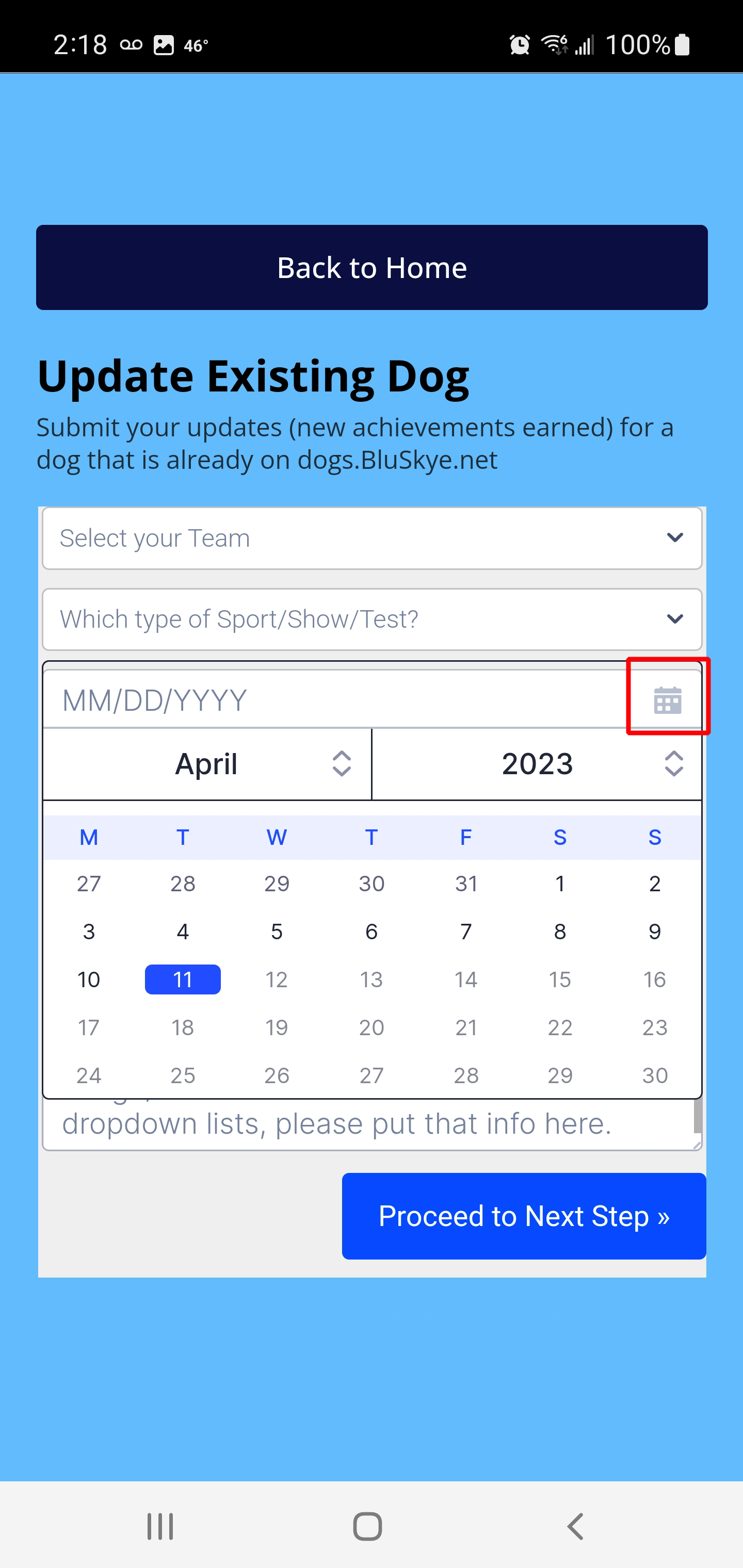
- When filling out the submission forms, for the calendar...
if you click on the "MM/DD/YYY" part, it will allow you to type in the date with the number pad. (You will then have to close the number pad, for Android you click the "back" button on your phone.)
If you click on the calendar icon, it will allow you to easily select the date from the calendar.
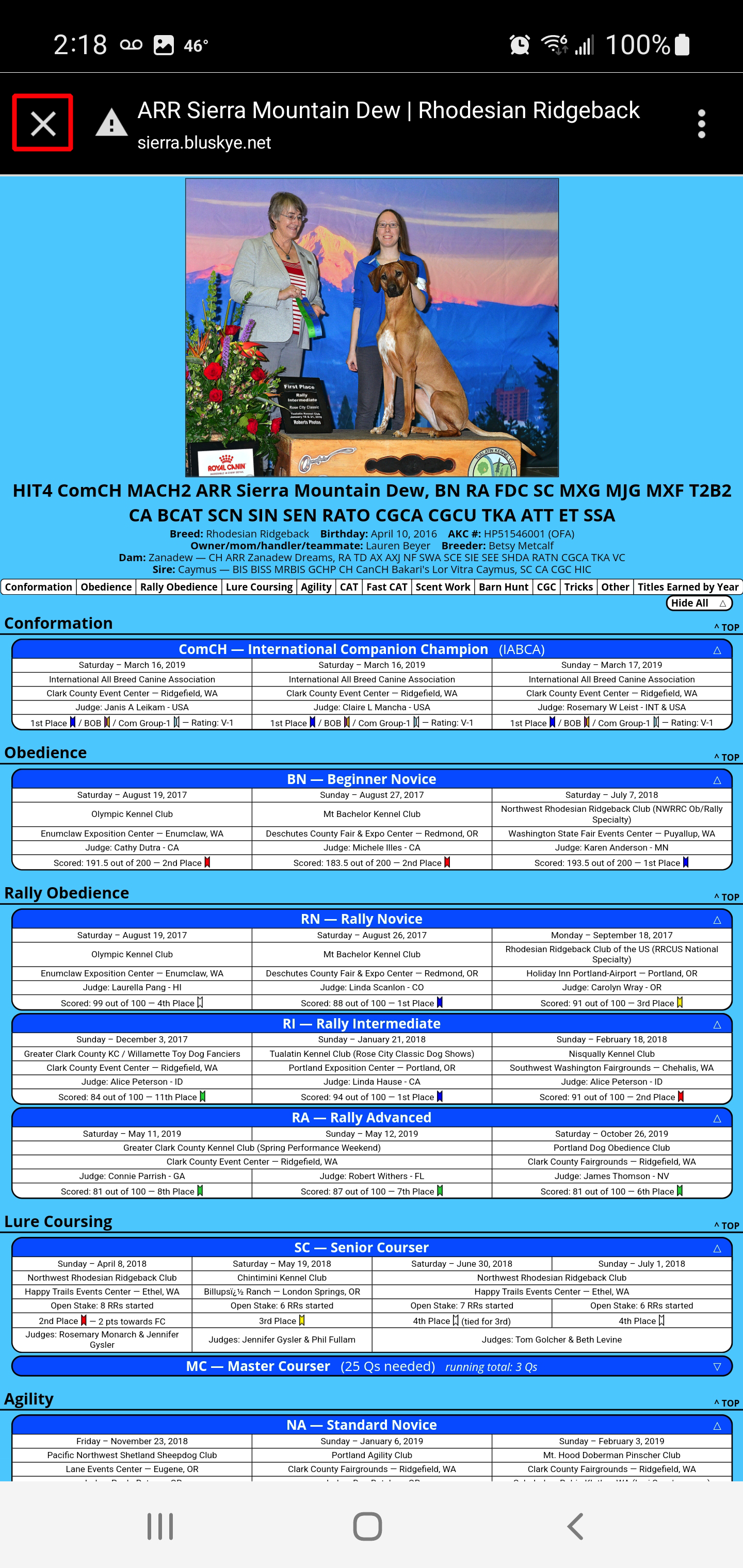
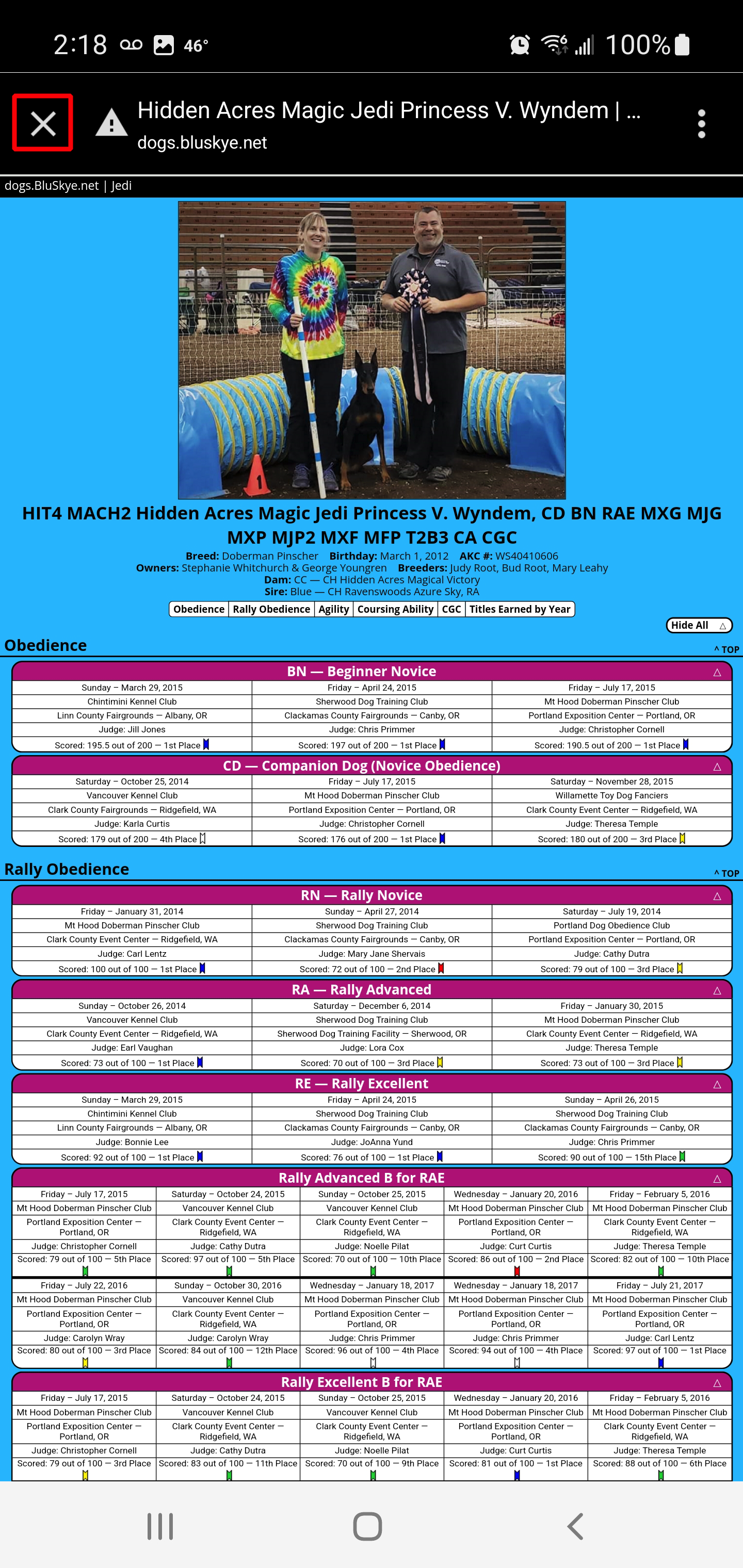
- When viewing any of the external webpages from the app, rather than clicking the "back" button a bunch of times, just click the "X" at the top left to return to the app.
- If you have a bunch of updates to submit, it may be easier to submit them using a computer on the website — from dogs.BluSkye.net, navigate to the Services page (from the Menu at the top-right) & click on the Update Existing Dog button.
|